October 19, 2026
A reliable setup is a controlled link-and-test process: confirm the authorized destination, encode the NFC record, create the QR alternative when used, verify both interactions and retest the finished stand in its real location.
Do not lock a tag or approve mass production until the destination, artwork and sample have passed the agreed checks.
Before you begin
- An authorized review destination supplied or approved by the business that controls the profile.
- An NFC-enabled stand or writable sample and a writing method appropriate to the selected tag.
- A QR code when the artwork includes a scan alternative.
- Approved artwork or at least a marked tap-area concept.
- Representative phones for practical testing.
Google interfaces and link-generation screens can change, so this guide focuses on the durable workflow rather than one temporary button sequence. Never expose account credentials during encoding or supplier coordination.
The setup sequence at a glance
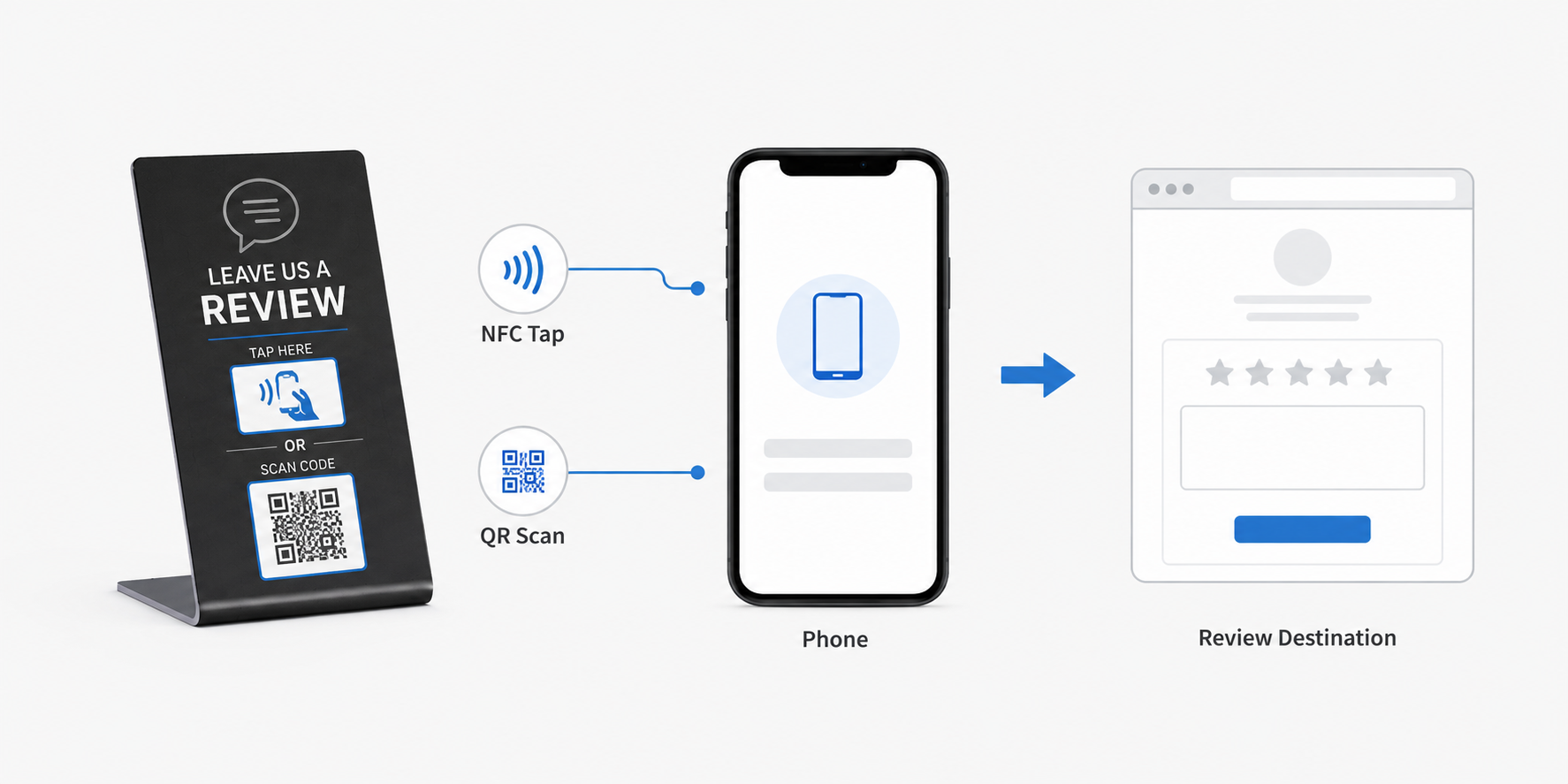
Approved destination → NFC encoding → optional QR generation → independent tests → artwork and placement check → lock decision → deployment record.
Treat “written” and “verified” as different states. A writing tool can report success while the finished interaction still opens the wrong location, fails after a redirect or becomes difficult to use in the installed position.
1. Confirm the correct Google review destination
Start with the Google review destination supplied or approved by the business that controls the Google Business Profile. If you obtain it from the profile-management interface, use the business’s current review-link function; interface labels can change, so the durable check is the result. Paste the URL into a normal browser window, follow any redirect and confirm that the intended business, location and review flow open. Save the final approved URL as text rather than relying on a screenshot or a button label.
For multi-location organizations, validate each branch separately. One incorrect source row can otherwise be repeated across an entire encoded and printed batch.
2. Choose a direct link or business-controlled redirect
A direct review destination is simple and avoids an extra dependency. A redirect controlled by the business can make future destination changes easier, but it must be owned, maintained and tested by that organization.
Avoid routing a permanent physical product through an unmanaged third-party domain. If the redirect stops working or changes ownership, the stand may no longer reach the intended destination.
Which NTAG chip belongs in a Google review stand?
NTAG213, NTAG215 and NTAG216 are NFC tag IC directions already supported for this acrylic product family. They can hold an NDEF web-link record that a compatible phone can read, which is the practical job required by a review stand: present the approved Google review URL when the customer taps.
NTAG213
For an ordinary short URL/URI record, an NTAG213 Google review stand is a natural starting direction when the encoded payload fits the approved configuration. This is why searches such as “how to program NTAG213 for Google reviews” usually lead back to the same NDEF URL workflow.
NTAG215 or NTAG216
These options may be considered when the final encoded record needs more room or when the approved product configuration calls for them. More memory does not make the review page open faster or improve review outcomes by itself.
Choose only after checking the complete NDEF payload, antenna and physical design. The Google destination does not require a special “Google chip”; the tag stores the approved web address. Avoid selecting by chip name alone or assuming every phone and placement behaves identically.
3. How to program NFC Google review stand hardware
Encode NFC review stand data as a URL/URI record
You can use an NFC-enabled phone with suitable NFC-writing software, or a compatible NFC writer supported by its own software. Exact menus vary, but the data operation is the same: write Google review URL to NFC tag as a URL/URI-type NDEF record. Do not select a text record simply because the payload looks like a web address; the intended result is a tappable web link.
- Copy the already verified Google review destination URL from the controlled record.
- Open the NFC-writing function and choose a URL, URI or web-link NDEF record type.
- Paste the URL exactly. Check for missing characters, unintended spaces and the correct business/location before writing.
- Place the phone over the marked tag area, or position the stand/tag on the compatible writer, and start the write operation. Keep it still until the software reports completion.
- Exit or close the writing mode. This prevents the next interaction from being mistaken for another write attempt.
- Use the phone’s normal NFC reading behavior to tap the stand as a customer would. Do not validate it from the writer’s saved-record screen.
- Open the notification and confirm the correct business, location and Google review destination after any redirects.
- If the artwork includes QR, scan the finished QR code separately and verify its final destination.
- Only after NFC, QR, artwork and placement tests pass should you decide whether the tag remains rewritable or is locked.
A successful write message is useful, but it is not the final proof. The independent read test is what confirms that the physical stand behaves correctly outside writing mode.
Do not lock the tag at this stage. Locking can be irreversible on some configurations.
4. Create the QR fallback when required
Generate the printed QR code from the same approved destination record unless the project intentionally needs another link. Keep adequate contrast, size and clear space around the code. Decorative treatment should not compromise scanning.
For a combined tap-to-review stand, NFC remains the primary technology direction while QR gives customers a visible scan alternative.
5. Test NFC and QR independently
| Check | Pass condition |
|---|---|
| NFC read | A normal read—not the writing screen—opens the intended business and review flow. |
| QR scan | The final printed code scans in representative lighting and opens the approved destination. |
| Redirect | The end destination after redirects matches the record. |
| Artwork | The instruction points to the real NFC area and the QR remains unobstructed. |
| Devices | Representative phones complete the interaction; no universal compatibility is assumed. |
| Record | The result is logged against the sample, location or batch identifier. |
6. Decide whether the NFC record remains rewritable
Keep the record rewritable when future destination changes are expected and the business accepts the associated control process. Lock only after the destination, artwork and sample are approved and the project specifically requires a permanent record.
The correct decision depends on the selected chip configuration and operating process. It is not a universal requirement for every review stand.
7. Place the stand and retest
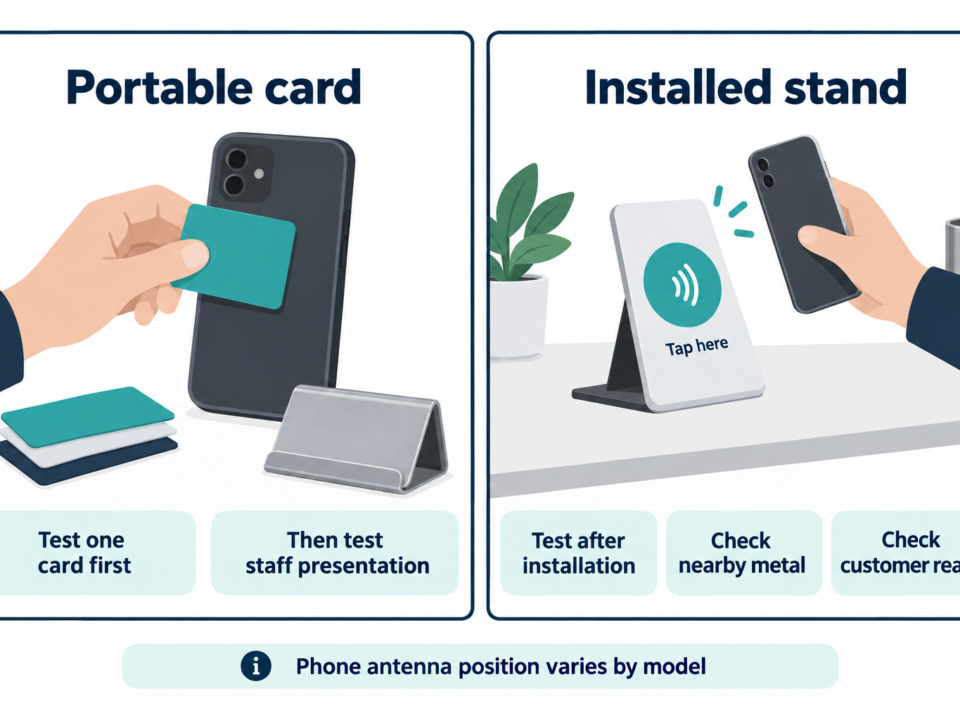
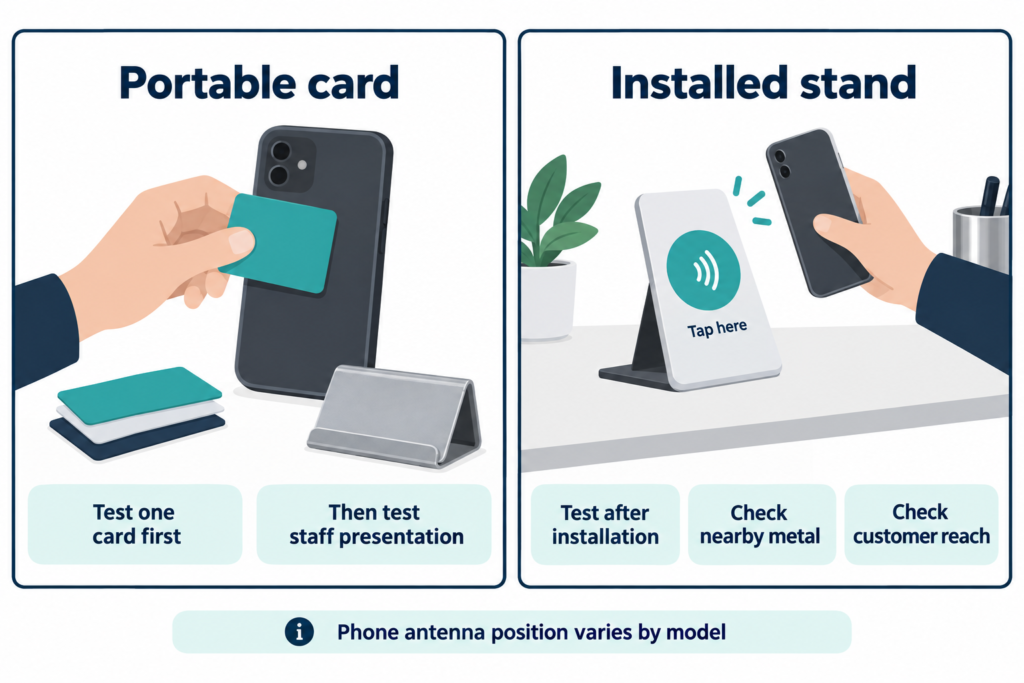
This final step completes the set up tap to review stand workflow. Install the stand at a natural service-completion point such as reception, checkout, a front desk or pickup counter. Check reach, stability, viewing angle, glare, QR visibility and whether the prompt interferes with payment or staff work.
Then repeat the NFC and QR tests in the final position. A sample that works on a desk may behave differently after the viewing angle, lighting or surrounding objects change.
For multiple locations, keep a short verification record
| Field | Purpose |
|---|---|
| Location or owner | Identifies where the object belongs. |
| Approved destination | Prevents branch or profile mix-ups. |
| Artwork version | Connects printed design to the approved link. |
| NFC verification | Records the independent tap test. |
| QR verification | Records the independent scan test. |
| Packing identifier | Supports sorting and handoff when project-specific matching is required. |
For a small setup, a simple record of location, approved URL and NFC/QR test result is enough. Larger variable-data, matching, labeling and packing workflows remain project-specific; they support deployment but do not replace the core write-and-read procedure above.
Troubleshooting
| Problem | Check first |
|---|---|
| NFC does not respond | Confirm phone support and settings, the marked tap area, tag writing result and whether surrounding materials affect the interaction. |
| QR does not scan | Check contrast, clear space, glare, damage, size, camera distance and the final printed artwork. |
| Wrong business opens | Stop deployment and compare both encoded paths with the approved destination record. |
| NFC and QR differ | Determine whether the difference was intentional; otherwise rebuild both from the controlled source. |
| Locked tag has the wrong link | Replacement may be required because some lock actions are irreversible. |
When a pre-encoded custom stand is useful
A supplier can prepare branded acrylic forms, NFC + QR artwork and customer-approved URL encoding when those requirements are confirmed. Product selection, custom samples and bulk purchasing belong to the separate pre-encoded custom Google review stand page.
The initial inquiry does not need to be a complete technical package. The intended use and approximate quantity are enough to start; sales can help confirm the link, artwork and verification workflow afterward.
Frequently asked questions
Can a supplier encode the stand before delivery?
Yes, for a customer-approved URL workflow supported by the product evidence. Confirm the destination and verification method before production.
Should I lock the NFC tag?
Only after approval and testing, and only when the project requires a permanent record. Locking behavior depends on the tag configuration.
Does setup guarantee more reviews?
No. Setup verifies that the physical access point opens the intended destination. Customer behavior and platform outcomes remain outside the device’s control.
Do NFC and QR need the same link?
They commonly share one controlled destination. If the project intentionally uses different links, document and verify each path.
Related guide: NFC Review Card Setup: How to Program and Test Cards and Stands.

Do RFID is a leading China-based manufacturer with over 15 years of experience. We specialize in customized RFID readers, tags, and cards, delivering high-quality, tailored solutions that meet your unique business needs and drive seamless, efficient identification.