September 22, 2026
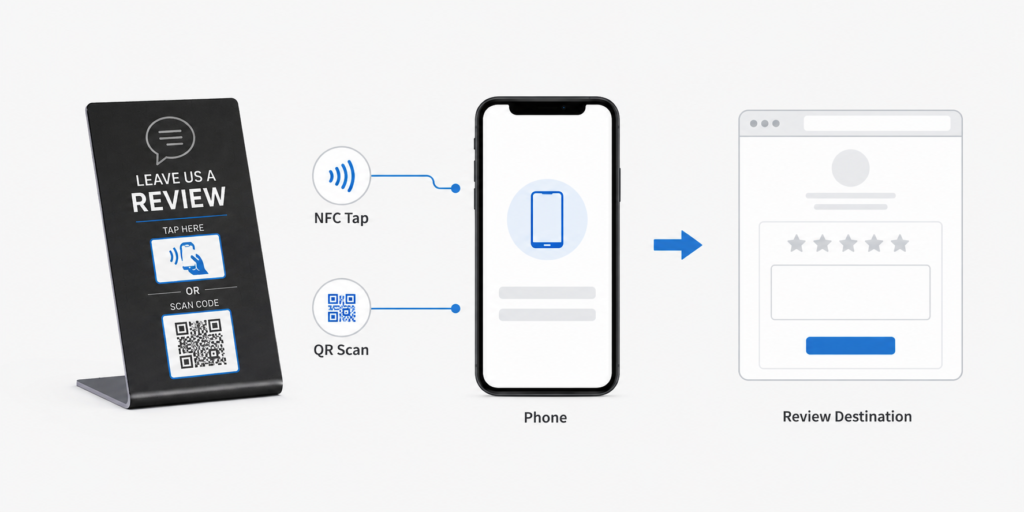
NFC review card setup has three essential steps: verify the review destination, write it to a compatible NFC tag as an NDEF URL record, and tap the finished card outside the writing app to test the customer experience. Test any printed QR code separately, and complete these checks before permanently locking the tag.
Cards and countertop stands share this encoding process. Handling and placement make the practical difference: a portable card needs to work when staff present it, while a stand needs to work after assembly and installation.
1. Prepare the card, writing tool and destination
For a blank card, gather:
- A writable NFC card suitable for storing an NDEF web link.
- An NFC-enabled phone with compatible writing software, or a compatible desktop NFC writer and software.
- The business-approved review URL.
- Representative customer phones for testing.
- The finished QR artwork, if the card includes a scan alternative.
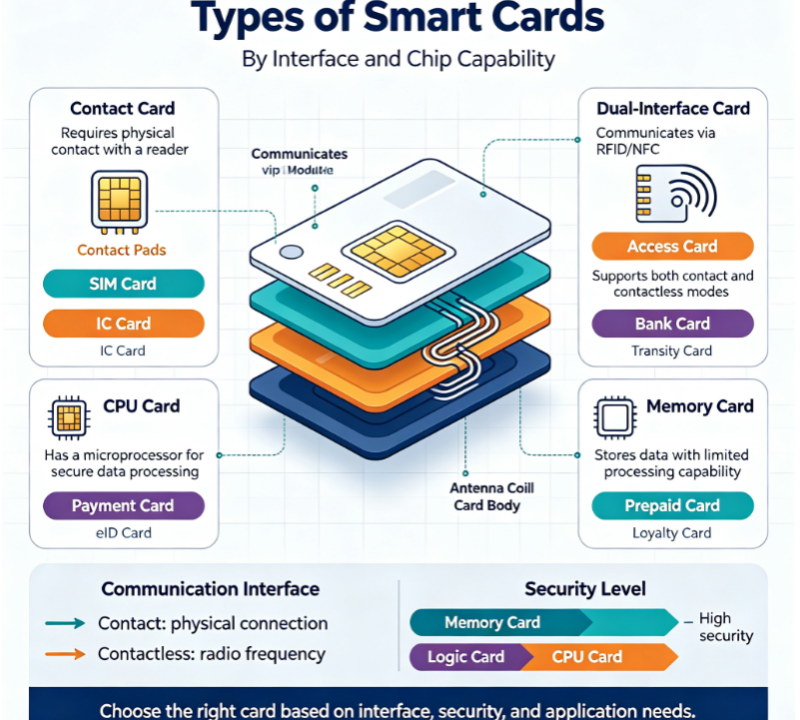
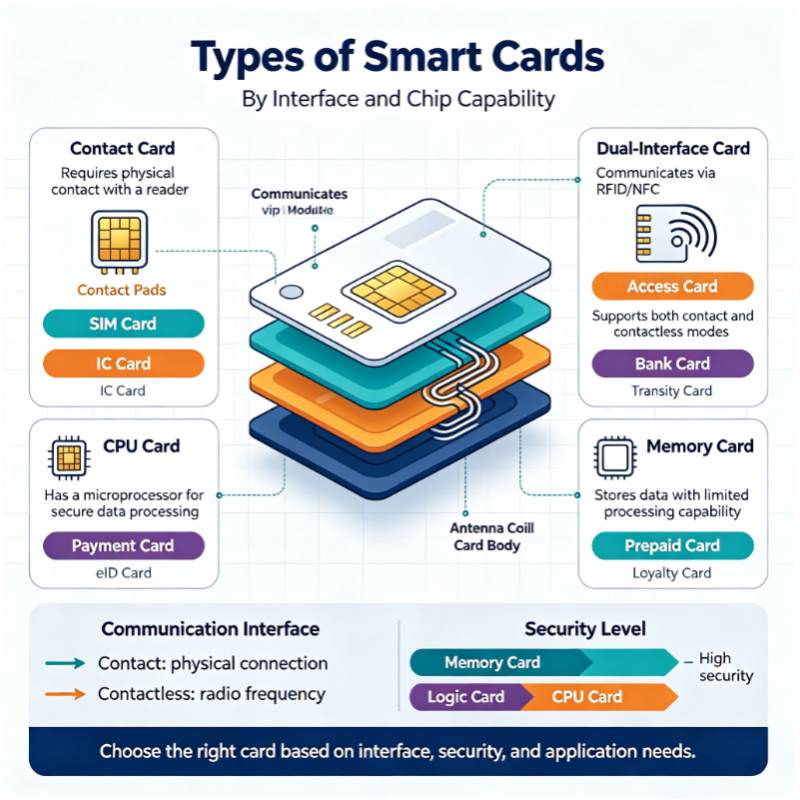
A reader that displays a card identifier does not necessarily support writing NDEF records. Likewise, an RFID access-control card is not automatically suitable for opening a web address on customers’ phones.
If the cards arrive pre-encoded, read them before attempting to rewrite them. Setup may consist of destination verification and deployment checks. Some cards use a managed service: their online destination changes through an account while the URL stored on the chip stays the same.
Validate the review link first
For Google reviews, obtain the review link from the business’s profile-management tools or the person managing the profile. Interface labels can change; the durable check is whether the link opens the correct business and review journey.
Open it in a browser and check the business name, branch and destination after any redirects. Test the experience without relying on the business’s management login. A link that works in an administrator’s session may not represent the customer’s experience.
Save the approved URL as text so encoding and printing use the same source. A supplier needs this public destination, not the business’s account password.
Customers may still need to sign in or meet the platform’s review requirements. The card opens the entry point; the customer writes and submits the review.
2. Choose a direct link, redirect or multi-platform page
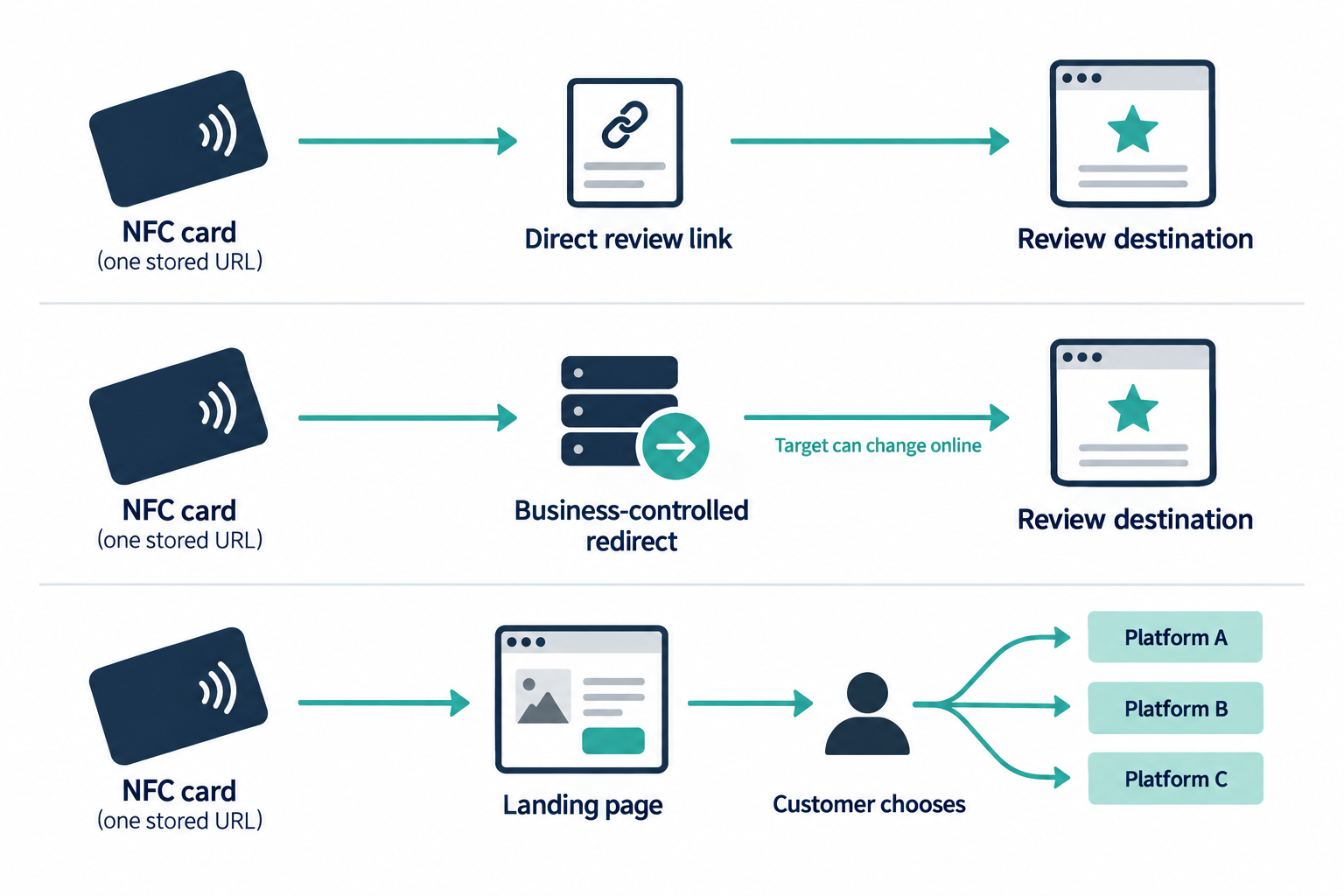
The stored URL determines the customer’s next step and how you can update the card later.
| Approach | Customer experience | How updates work | Main tradeoff |
|---|---|---|---|
| Direct review link | Opens one platform’s review journey | Rewrite an unlocked tag if its stored URL needs to change | Few dependencies, but physical cards may need updating |
| Business-controlled redirect | Automatically forwards to one destination | Update the redirect target without rewriting the card | Requires continued control of the domain and redirect service |
| Multi-platform landing page | Presents a choice of review destinations | Edit the page’s buttons and links | Offers choice but adds a customer step and page maintenance |
For example, a single-location business seeking Google reviews can use its direct review link. A business expecting to change destinations can encode a maintained redirect. A business offering several review channels can use a landing page with clearly named platform buttons.
For multiple platforms, encode one URL leading to the choice page. Writing several URL records to the tag does not reliably produce a menu; phones can handle those records differently.
Google, Checkatrade, Feefo and TrustATrader should not be assumed to share the same review process. Check the entry point and requirements applicable to each business account. A landing page cannot bypass an invitation or transaction requirement where one applies.
If the page also offers contact sharing or a hosted payment link, label those actions separately so the review option remains easy to find.
Before adopting a managed service, establish who controls the account and what happens if the subscription ends or the provider becomes unavailable. Both the NFC tag and a printed QR code remain dependent on the continued operation of their stored address.
3. Write the URL to the NFC card
NDEF is a standard format for storing information on NFC tags. Select a URL, URI or web-link record in the writing software. A plain text record containing an address may not trigger the same web-opening behavior.
Exact menus vary, but the procedure is consistent:
- Read the card to inspect its existing data and write-protection status.
- Prepare a single NDEF URL/URI record. For a dedicated review card, replace unwanted existing records.
- Paste the approved URL with its correct scheme, normally HTTPS. Check for missing characters, spaces and branch mix-ups.
- Present one card to the phone or writer, keeping other NFC cards away.
- Hold it still at the antenna position until writing finishes.
- Exit writing mode and move the card away.
- Tap again using the phone’s normal NFC reading behavior. Open any notification and check the final destination.
A successful write message confirms the encoding operation. Reading the card independently checks whether the customer can use the stored record. Keep the tag writable until destination, artwork and finished-item tests pass.
Choose enough memory for the complete record
A short review URL usually needs little storage, but the complete NDEF payload must fit, including formatting overhead. Long addresses with tracking parameters can require more space than expected.
NTAG213, NTAG215 and NTAG216 are common NFC Type 2 tag options with different memory capacities. Choose against the actual encoded payload. Additional memory alone does not improve tap detection or make the review page load faster: antenna design and handling affect detection, while the phone’s internet connection and destination service affect page loading.
There is no special “Google review chip” required for this workflow. The tag needs to support a suitable web-link record and work reliably in the finished card or stand.
4. Test handheld cards and installed stands
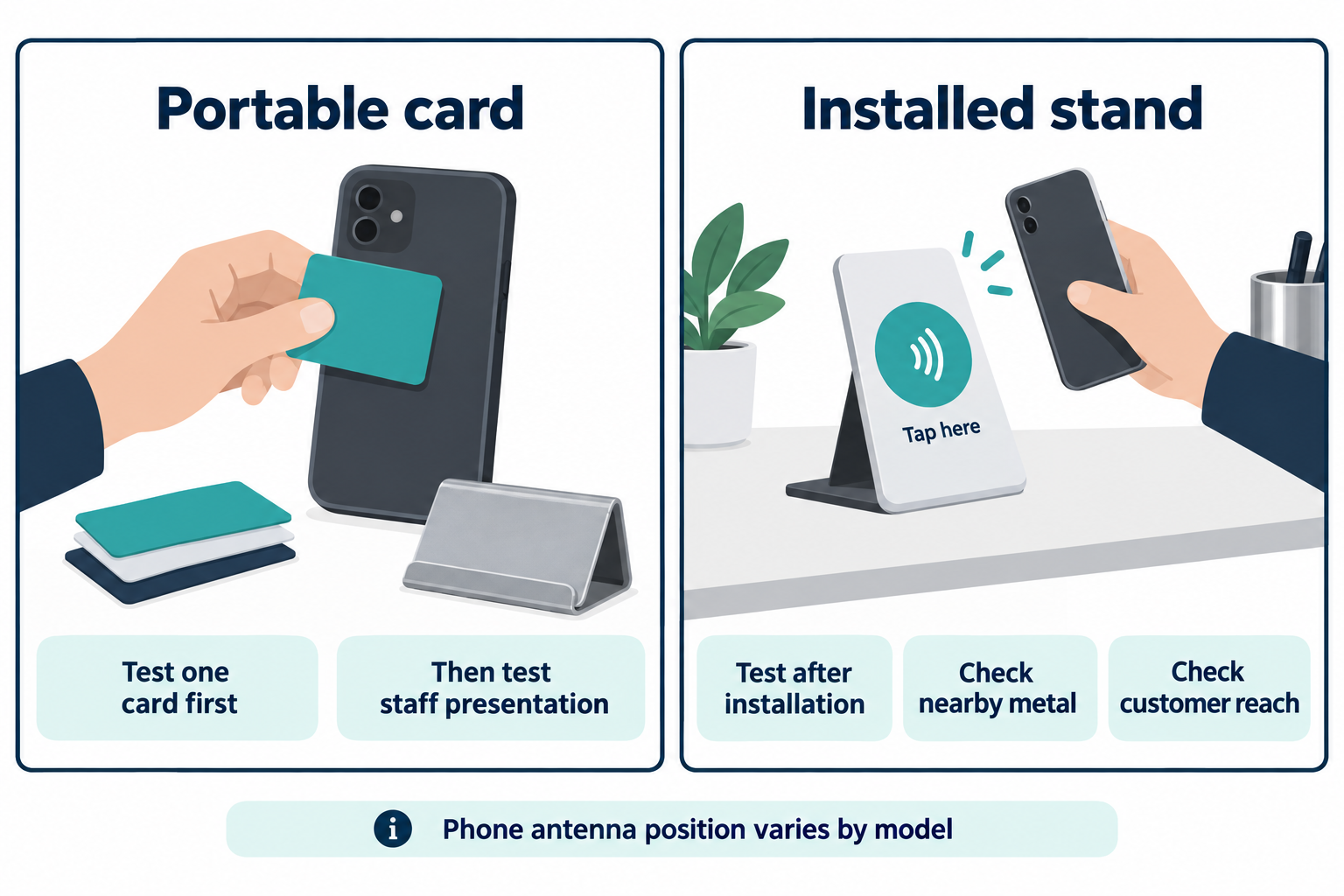
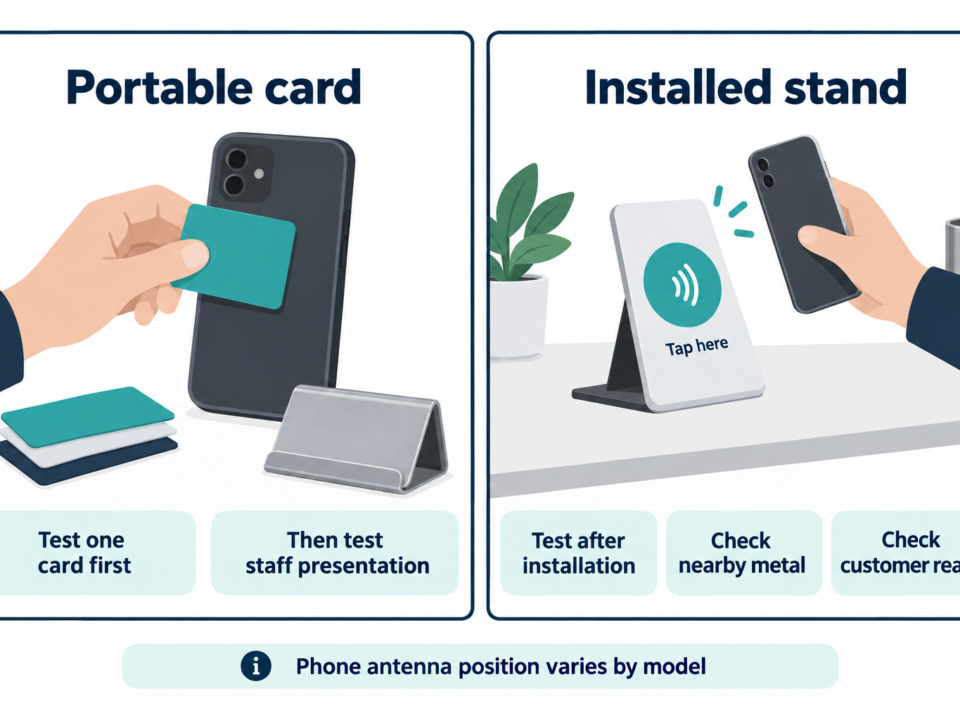
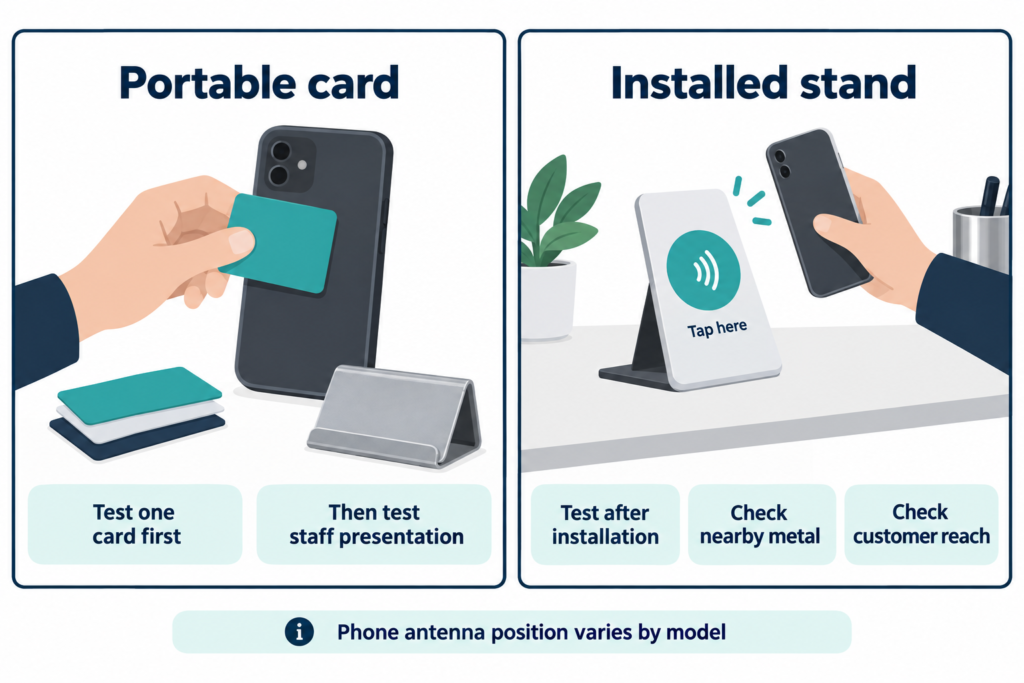
Start with the phone awake and unlocked, and enable NFC where the device provides that setting. Locate its NFC antenna rather than assuming the center of the screen is the reading point. Antenna position varies by model; move the card slowly along the phone’s back, then hold it still briefly when detected.
Portable card checks
Test one card outside wallets, stacks and metal holders first. Nearby tags can complicate detection, and metal can detune or shield an ordinary NFC antenna.
Next, test how staff will actually hold and present the finished card. Check that the tap marking identifies a usable area and that staff can explain where to position the phone. If detection is inconsistent, try removing a thick phone case or metal accessory.
If a metal holder is part of the intended setup, select a tag construction designed for that environment and test the assembled combination. A successful test of a loose card does not establish performance inside its holder.
Countertop stand checks
Place the finished stand at the intended service point. Check customer reach, viewing angle, stability, nearby metal and whether tapping interferes with payment equipment or staff work. Retest after installation.
For both formats, use representative NFC-capable iPhones and Android phones from the intended audience. Record the models tested; one successful phone test does not establish universal compatibility.
The passive NFC tag receives power from the phone during reading, so it needs no battery. Loading the online review page still requires internet access.
5. Verify QR and the full customer journey
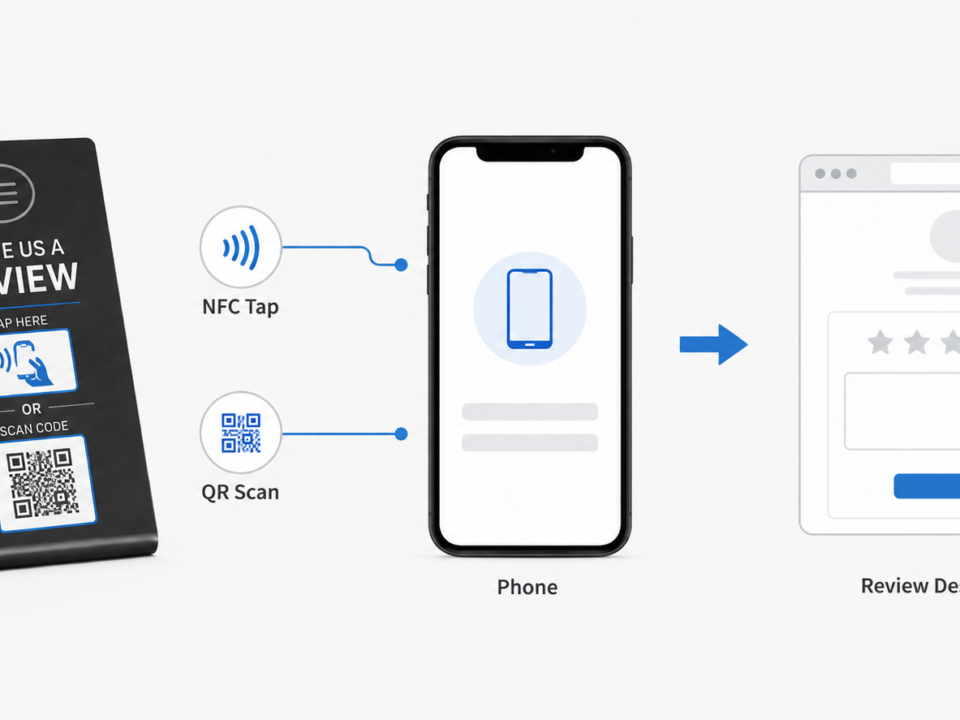
Generate the QR code from the same approved destination record unless separate tracking links are intentional. Different NFC and QR addresses should still lead to the intended business and customer journey.
Test the final printed QR code, not just its digital artwork. Contrast, clear space around the code, print quality, glare and viewing distance affect scanning. For a stand, check it at the installed angle and under actual lighting.
| Check | Passing result |
|---|---|
| Normal NFC tap | The phone detects the web link outside the writing app |
| Review destination | The correct business, branch and review journey open |
| QR scan | The finished printed code reaches the intended destination |
| Multi-platform page | Every button reaches the intended platform entry point |
| Handling or placement | Customers can use the card or stand without repeated repositioning |
| Customer account state | Any sign-in or eligibility steps are understood |
| Artwork | Branding, branch details and tap/scan instructions match the setup |
For a pre-encoded batch, these checks remain necessary even though you did not perform the writing step.
6. Decide whether to lock the tag
An unlocked tag allows correction and future rewriting. It may also allow someone with a compatible writer to change its contents. Permanent write protection can prevent changes to the stored record, but the operation may be irreversible. Check what the selected chip and writing tool mean by “lock” before using that command.
Complete the NFC, QR, destination and artwork tests first. Then choose based on the maintenance plan:
| Configuration | Later maintenance |
|---|---|
| Rewritable direct link | Rewrite each card when the stored URL needs changing |
| Locked direct link | If the stored URL becomes unusable and cannot be redirected, replace the tag or card |
| Locked managed URL | Keep the stored URL and update its redirect or landing page online |
Locking the chip does not freeze a redirect’s destination. Tag write protection and control of the web account are separate responsibilities. After applying protection, perform another normal tap test and record the resulting lock status.
Troubleshooting NFC review cards and stands
First identify where the process stops: tag detection, writing, opening the URL or completing the platform’s review flow.
| Symptom | What to check | Practical next step |
|---|---|---|
| No NFC response | Phone support/settings, antenna alignment, metal, nearby tags or card damage | Wake and unlock the phone, isolate the card and try another known-working NFC phone |
| Card is detected but writing fails | Protected memory, incompatible software, insufficient capacity or interrupted coupling | Inspect tag status and capacity; try one URL record and hold the card still |
| Writing succeeds but normal tapping offers no web link | Incorrect record type, unwanted records or phone behavior | Read back the NDEF data, confirm the URL/URI record and test outside writing mode |
| Wrong business or branch opens | Source URL, batch mapping or redirect target | Compare the stored URL and final destination with the approved branch record |
| A notification appears but the page will not load | Connectivity, domain, redirect or destination failure | Open the stored URL directly in a browser to separate web problems from NFC problems |
| Page opens but requests sign-in or will not accept a review | Platform account or eligibility requirements | Check the customer review process; rewriting the same URL will not remove these requirements |
| QR works but NFC does not | NFC record, hardware or handling | Read back the NFC record and compare its destination with the QR code |
| NFC works but QR does not | QR data, print quality, glare or clear space | Inspect the encoded address and scan another finished printed sample |
| Locked card has the wrong URL | Permanent stored data | Update a controlled redirect if the stored address permits it; otherwise replace the tag or card |
Two comparison tests help isolate faults: try the suspect card on another phone, then try a known-working card on the original phone. If neither card works on one phone, investigate the device and handling. If only one card fails across working phones, investigate that card’s data or construction.
Keep cards matched to their locations
For a single branch, a short record of the approved URL and test results may be enough. For multiple locations or reseller orders, connect the physical items to their intended destinations.
| Record field | Purpose |
|---|---|
| Business and branch identifier | Prevents similarly named locations from being mixed up |
| Card or batch identifier | Connects the physical item to its setup record |
| Stored NFC URL and QR URL | Makes encoding and printing differences traceable |
| Expected final destination | Records what should open after redirects |
| Artwork version | Helps catch correct links paired with incorrect branch branding |
| Lock status and test results | Shows what was verified and whether rewriting remains possible |
| Destination owner | Identifies who can update or repair managed links |
For example, branch A and branch B might use identical artwork but different review destinations. Clearly identified batches and a destination mapping prevent staff from receiving the other branch’s cards.
Validate every unique destination before duplicating it. Keep branch batches separated through encoding, printing and packing, and agree how finished units will be checked. Recheck links after online destination changes and periodically during use; a card can remain readable while its web destination stops working.
What to specify when requesting samples
When discussing NFC cards or stands with DO RFID TAG, describe the customer interaction, intended placement and approximate quantity. Include the approved destination, direct or managed routing, QR artwork, tap-area marking and whether the tag should remain rewritable.
Ask whether the proposed supply is blank or pre-encoded, and whether any managed-link service is involved. For multi-location orders, supply the branch-to-destination mapping and packing identifiers.
Evaluate a finished sample with the phones, holders and counter surfaces expected in service. The sample should demonstrate the complete interaction: staff present the card or customers approach the stand, the phone reads it, and the correct review destination opens.
Frequently asked questions
Do customers need an app to use an NFC review card?
A compatible phone can generally open a standard NDEF web-link record through its normal NFC reading behavior without a dedicated review-card app. Support and settings vary by device. Programming a blank card usually requires suitable NFC-writing software.
Can I change the review link after printing the card?
You can rewrite a compatible unlocked NFC tag, but that does not change its printed QR code. If both contain a managed URL you control, updating the online destination can update both journeys without changing the physical card.
Can one NFC review card support several platforms?
Yes. Encode one URL leading to a landing page with clearly labeled platform choices. Verify each destination and its review requirements. Multiple URL records on a tag do not reliably create a menu on customers’ phones.
Is setting up a review stand different from setting up a card?
The encoding and destination checks are the same. Cards need testing during handheld presentation and outside wallets or stacks. Stands need testing after assembly and installation, including checks for nearby metal, reach and QR glare.
Does tapping the card automatically post a review?
No. Tapping opens the destination. The customer completes any required sign-in, writes the review and submits it. Successful setup does not guarantee participation or a particular rating.
Related guide: How to Set Up an NFC Google Review Stand.

Do RFID is a leading China-based manufacturer with over 15 years of experience. We specialize in customized RFID readers, tags, and cards, delivering high-quality, tailored solutions that meet your unique business needs and drive seamless, efficient identification.