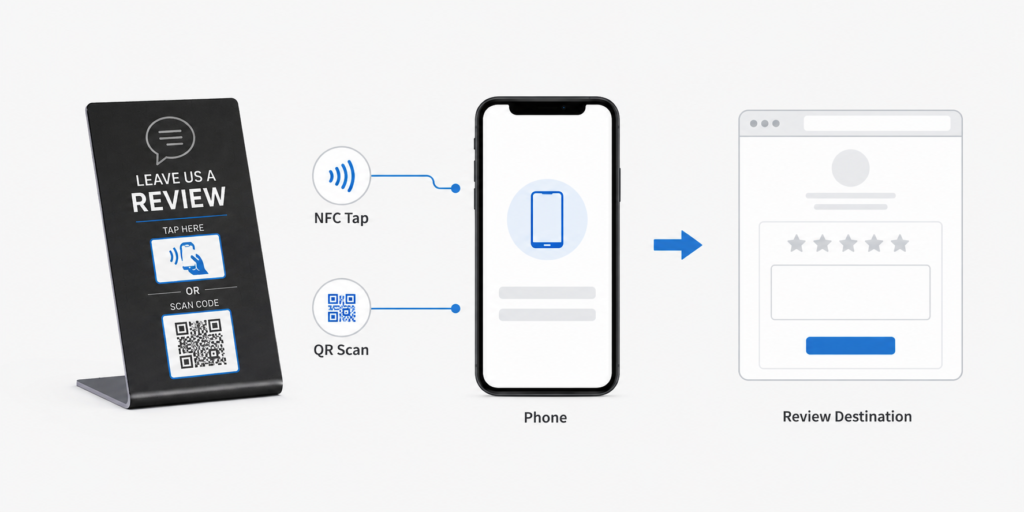
Near Field Communication (NFC) technology has become a practical tool for automation, marketing, authentication, and digital interaction. NFC tags such as NTAG213, NTAG215, and NTAG216 are among the most widely used chips because they are inexpensive, reliable, and compatible with most NFC-enabled smartphones.
A common question from developers, businesses, and hobbyists is: Can NFC tags be rewritten? The answer is yes—as long as the tag is not locked. Rewriting an NFC tag allows you to change the stored data, update links, modify automation tasks, or reuse the tag for different purposes.
This detailed guide explains exactly how to rewrite NTAG213, NTAG215, and NTAG216 NFC tags, including tools, preparation, step-by-step instructions, troubleshooting, and real-world applications. By following the instructions in this guide, readers can perform the process independently and successfully.
Understanding NTAG213, NTAG215, and NTAG216 NFC Tags
Before rewriting a tag, it helps to understand what these chips are and how they differ.
These chips belong to the NXP NTAG21x series, a family of NFC Forum Type 2 tags widely used in consumer and industrial applications.
NTAG213
NTAG213 is the most commonly used NFC tag for simple data storage.
Key characteristics:
User memory: 144 bytes
Typical uses: URL sharing, digital business cards, product labels
Compatibility: Android NFC phones and NFC-enabled iPhones
Cost: Low
Because the memory is small, it is best suited for short links or small data records.
NTAG215
NTAG215 offers more memory than NTAG213 and is widely used in specialized applications.
Key characteristics:
User memory: 504 bytes
Typical uses: Amiibo tags, gaming data, automation tasks
Compatibility: Android and iOS
Cost: Medium
This chip is popular because it balances storage capacity and price.
NTAG216
NTAG216 has the largest memory among the three.
Key characteristics:
User memory: 888 bytes
Typical uses: complex NFC records, long URLs, contact cards, smart posters
Compatibility: Android and iOS
Cost: slightly higher
If your application requires storing larger data records, NTAG216 is usually the best choice.
Can NFC Tags Be Rewritten?
Yes—most NTAG213, NTAG215, and NTAG216 tags are rewritable by default.
However, two important conditions must be understood.
Condition 1: The Tag Must Not Be Locked
NFC tags include a lock feature that permanently prevents rewriting.
Once locked:
Data cannot be changed
Memory becomes read-only
Locking cannot be reversed
This feature is useful for security and anti-tampering, but it also means you cannot rewrite the tag afterward.
Condition 2: The Memory Must Be Writable
If the tag is still writable, you can:
Erase existing data
Replace the content
Write new records
Update URLs or commands
Rewriting is therefore a simple overwrite process.
Tools Required to Rewrite NFC Tags
Rewriting NFC tags requires only a few basic tools.
1. NFC-Enabled Smartphone
Most modern smartphones include NFC capability.
Compatible devices include:
Android phones (Samsung, Google Pixel, Xiaomi, etc.)
iPhone 7 and newer models
Android devices usually offer more control and flexibility for NFC programming.
2. NFC Writing App
You need an application capable of reading and writing NFC data.
Common apps include:
For Android:
NFC Tools
NXP TagWriter
Trigger
For iPhone:
NFC Tools
NFC TagWriter by NXP
Among these, NFC Tools is often considered the easiest to use.
3. NTAG213 / NTAG215 / NTAG216 NFC Tag
Ensure the tag:
Is genuine
Has not been locked
Is not physically damaged
Cheap counterfeit tags sometimes fail during rewriting.
Step-by-Step Guide to Rewriting NFC Tags
The process of rewriting NFC tags follows a clear workflow.
Scan the tag
Check if it is writable
Erase old data
Write new data
Test the tag
Each step is explained in detail below.
Step 1: Install an NFC Writing App
First, download an NFC programming application.
Example process using NFC Tools:
Open the Google Play Store or Apple App Store
Search for NFC Tools
Install the application
Launch the app
The interface usually includes sections such as:
Read
Write
Erase
Other tools
Step 2: Enable NFC on Your Smartphone
NFC must be enabled before reading or writing tags.
On Android
Open Settings
Tap Connections
Enable NFC
Turn on Android Beam or NFC sharing
On iPhone
For iPhone models after iPhone XS, NFC scanning is often enabled automatically.
Otherwise:
Open Control Center
Enable NFC Tag Reader
Step 3: Scan the NFC Tag
Before rewriting the tag, confirm its current content.
Procedure:
Open NFC Tools
Tap Read
Hold the NFC tag against the back of the phone
Wait for the device to detect the tag
Within seconds, the application will display:
Tag type
UID (Unique ID)
Memory size
Existing data records
This confirms the tag is functioning correctly.
Step 4: Check Whether the Tag Is Locked
After reading the tag, check the lock status.
In NFC Tools, look for information such as:
Lock bytes
Write protection
Tag status
If the tag shows read-only, it cannot be rewritten.
If it shows writable, you can proceed.
Step 5: Erase the Existing Data
To rewrite the tag, the old data should be removed.
Steps:
Open the NFC Tools menu
Tap Other
Select Erase tag
Place the phone on the tag
Wait for confirmation
The app will display:
Erase successful
This clears the previous records and prepares the tag for new data.
Step 6: Prepare the New Data
Now create the new content that will be written onto the tag.
Common NFC records include:
Website URL
Contact card (vCard)
WiFi connection
Text message
Phone number
Application launch command
Example: Writing a website link.
Steps:
Open Write
Select Add a record
Choose URL / URI
Enter the website address
Example:
The app stores this as an NFC record.
Step 7: Write the New Data to the Tag
Once the data record is prepared, write it to the tag.
Steps:
Tap Write
Place the phone against the NFC tag
Wait for the writing process to complete
A successful operation will display:
Write complete
The tag now contains the new data.
Step 8: Test the NFC Tag
Testing ensures the tag works correctly.
Steps:
Exit the writing screen
Scan the tag again
Allow the phone to automatically trigger the action
Example outcomes:
Opening a website
Displaying contact information
Connecting to WiFi
Launching an app
If the correct action occurs, the rewrite was successful.
Advanced Tip: Overwriting Instead of Erasing
In many cases, erasing is not required.
You can simply:
Write new records
Overwrite existing data
The NFC chip replaces the old data automatically.
However, erasing first helps avoid data conflicts or leftover records.
Locking the Tag After Writing (Optional)
Once a tag is programmed correctly, some users choose to lock the tag permanently.
Reasons include:
Preventing tampering
Protecting marketing campaigns
Ensuring authentication
Steps:
Write the final data
Open NFC Tools
Choose Lock tag
Important warning:
Locking is permanent and cannot be reversed.
Always test the tag first before locking it.
Real-World Applications of Rewritable NFC Tags
Rewritable NFC tags are extremely versatile.
Marketing Campaigns
Businesses use NFC tags to direct users to:
Landing pages
Product videos
Promotions
If the campaign changes, the tag can simply be rewritten with a new link.
Smart Home Automation
NFC tags can trigger automation tasks such as:
Turning on lights
Activating WiFi
Launching smart home scenes
These commands can be updated by rewriting the tag.
Digital Business Cards
Instead of printing new cards, NFC tags can store:
Contact information
LinkedIn profile
Portfolio
Updating your details requires only rewriting the tag.
Inventory and Asset Management
Warehouses often use NFC tags for:
Equipment identification
Tracking maintenance records
Updating inspection logs
Data can be rewritten whenever the status changes.
Troubleshooting Common Problems
Sometimes rewriting NFC tags does not work immediately. The following solutions address the most common issues.
Problem: Phone Cannot Detect the Tag
Possible causes:
NFC disabled
Phone positioned incorrectly
Tag damaged
Solution:
Move the tag slowly across the back of the phone to find the NFC antenna.
Problem: Tag Is Read-Only
Cause:
The tag has been locked.
Solution:
Unfortunately, locked tags cannot be rewritten. You must use a new tag.
Problem: Write Operation Fails
Possible causes include:
Weak NFC signal
Tag moved during writing
Low-quality tag
Solution:
Hold the phone steady until the writing process completes.
Problem: Not Enough Memory
If writing fails due to insufficient memory:
Solutions:
Use a shorter URL
Remove unnecessary records
Use a larger chip such as NTAG216
Security Considerations When Rewriting NFC Tags
NFC technology is convenient but should be used carefully.
Important practices include:
Avoid storing sensitive data
Use encrypted links when possible
Lock tags used in public environments
Test tags regularly
These measures help maintain security and reliability.
Best Practices for NFC Tag Rewriting
Experienced NFC developers follow several best practices.
Always verify the tag type before writing.
Choose the correct chip:
NTAG213 for simple links
NTAG215 for moderate storage
NTAG216 for large records
Avoid locking tags unless absolutely necessary.
Keep a backup of the written data in case you need to recreate the tag.
Final Thoughts
Rewriting NTAG213, NTAG215, and NTAG216 NFC tags is a simple process once the basic workflow is understood. With an NFC-enabled smartphone and a reliable writing app, users can quickly erase old data, create new records, and update tags for a wide range of applications.
The key steps are straightforward:
Install an NFC writing app
Enable NFC on your phone
Scan the tag
Verify the tag is writable
Erase or overwrite existing data
Write the new record
Test the tag
By following these steps carefully, even beginners can successfully rewrite NFC tags and reuse them for marketing, automation, product labeling, or smart interactions.
The small plastic sticker hiding an NTAG chip may look unremarkable, but inside sits a tiny microchip that turns everyday objects into digital gateways—one tap, and the physical world starts talking to the internet.